
5. Selection Tools#

The Selection Tools enable you to select elements, nodes, and coordinate systems and perform various actions with the selected items.
Refer to 4. 3D Visualization Controls for instructions on selecting and deselecting elements, nodes, and coordinate systems.
The Info Selection panel in the status bar displays the count of selected elements, nodes, and coordinate systems. For more information, see 2.6. Selection Info.
5.1. Toolbar Organization#
The toolbar is divided into two parts:
Selection Options: What to select

Action Options: What to do with the selection

5.2. Selection Options#
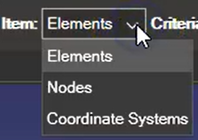
You can select elements, nodes, or coordinate systems.
Selection Criteria for Elements#
When selecting elements, you can choose from several criteria:
Items — Select individual items one at a time
Entities — Select all elements belonging to the same entity (geometric group)
Properties — Select all elements that share the same material or section property
Parts — Select all elements from the same part
Type — Select all elements of the same type (e.g., all shells, all solids)
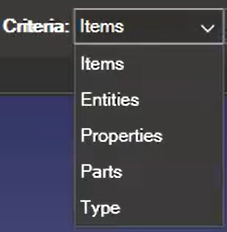
Select the desired item type from the dropdown menu shown in the figure above. The selection count updates in the lower right corner.
Selection by ID#
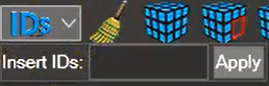
Click the IDs icon to select elements, nodes, or coordinate systems individually or by range. Use colons to define ranges and commas to separate items.
Example: Enter 1:10, 15, 20:25 to select IDs 1–10, 15, and 20–25.
5.3. Action Options#
The following table lists all available actions you can perform with selected elements:
Icon |
Tool |
Description |
|---|---|---|
|
Clear Selection |
Clears all selections |
|
Show All |
Shows all model elements, including any that were previously hidden |
|
Hide Selection |
Hides the selected elements from view; unselected elements remain visible |
|
Show Selection |
Shows selected elements that are currently hidden. Use this after selecting hidden items from the Session Tree |
|
Isolate Selection |
Hides all unselected elements, showing only the current selection |
|
Reverse Selection |
Deselects currently selected items and selects all previously unselected items |
|
Reverse Visible |
Shows all hidden elements and hides all visible elements |
|
Selection Adjacent |
Selects elements that share nodes or edges with the currently selected elements |
|
Unhide Adjacent Elements |
Shows elements adjacent to currently visible elements |
|
Selection Attached |
Expands the selection to include elements attached to the currently selected elements, recursively |
|
Selection by Face |
Selects the element face, expanding to adjacent elements based on edge connectivity and surface angle. The angle threshold can be set in Tools → Feature Angle |
|
Activate Surface Selection |
Enables surface-only selection mode. When elements are hidden, only surface elements are affected; internal elements remain visible |
|
Create New Group from Selection |
Creates a new group from the selection and adds it to the Model Tree. The group persists even after the selection is cleared |
|
Show Labels for Selection |
Toggles the display of ID labels for selected elements |
|
Activate Tool Tip Information |
Displays element information in a tooltip when the cursor hovers over it |
|
Activate Glow Actor Outline |
Highlights element outlines when the cursor hovers over them |
|
Show Normals |
Displays element normal vectors. This option is not available for node selections |





5.4. Node and Coordinate System Selections#
For node and coordinate system selections, the available functions are:
Clear Selection, Show All, Reverse Selection, Activate Surface Selection, Show Labels for Selection, Activate Tool Tip Information, Activate Glow Actor Outline, and Show Normals.
