

19. Card Manager#
Finite element solver input files (NASTRAN, OptiStruct) are composed of “cards.”
Card Manager, integrated into NaxToView, allows users to visualize, filter, edit, and export cards from .bdf, .dat, .inc, and similar files.
It includes validations based on the official NASTRAN/OptiStruct documentation to ensure correct edits, as well as a messaging system (success, warning, error) for each operation.
The Card Manager is organized into two tabs: Bulk Card Manager, which preserves the traditional deck-based workflow for operating on groups of cards at once, and Individual Card Manager, which lets you inspect and edit cards one by one, grouped by card type. Both tabs share the same loaded set of cards, so you can switch between them at any time without reloading the model.
Note: In the current version, edits made to cards do not update the 3D view in real time. To see the changes in the model, export and reopen the file in NaxToView. Status changes within the Card Manager itself — such as the colored indicators shown by the Individual Card Manager — are updated in real time.
19.1. Opening the Card Manager#
Load a NASTRAN/OptiStruct file in NaxToView.
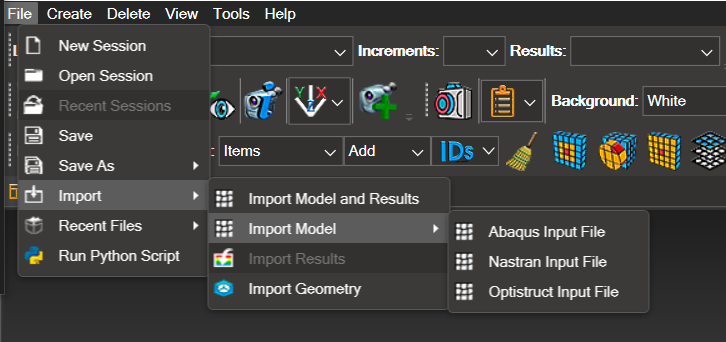
The Card Manager icon (
 ) will appear in the toolbar.

Click the icon to open it; the Card Manager window is independent and resizable.
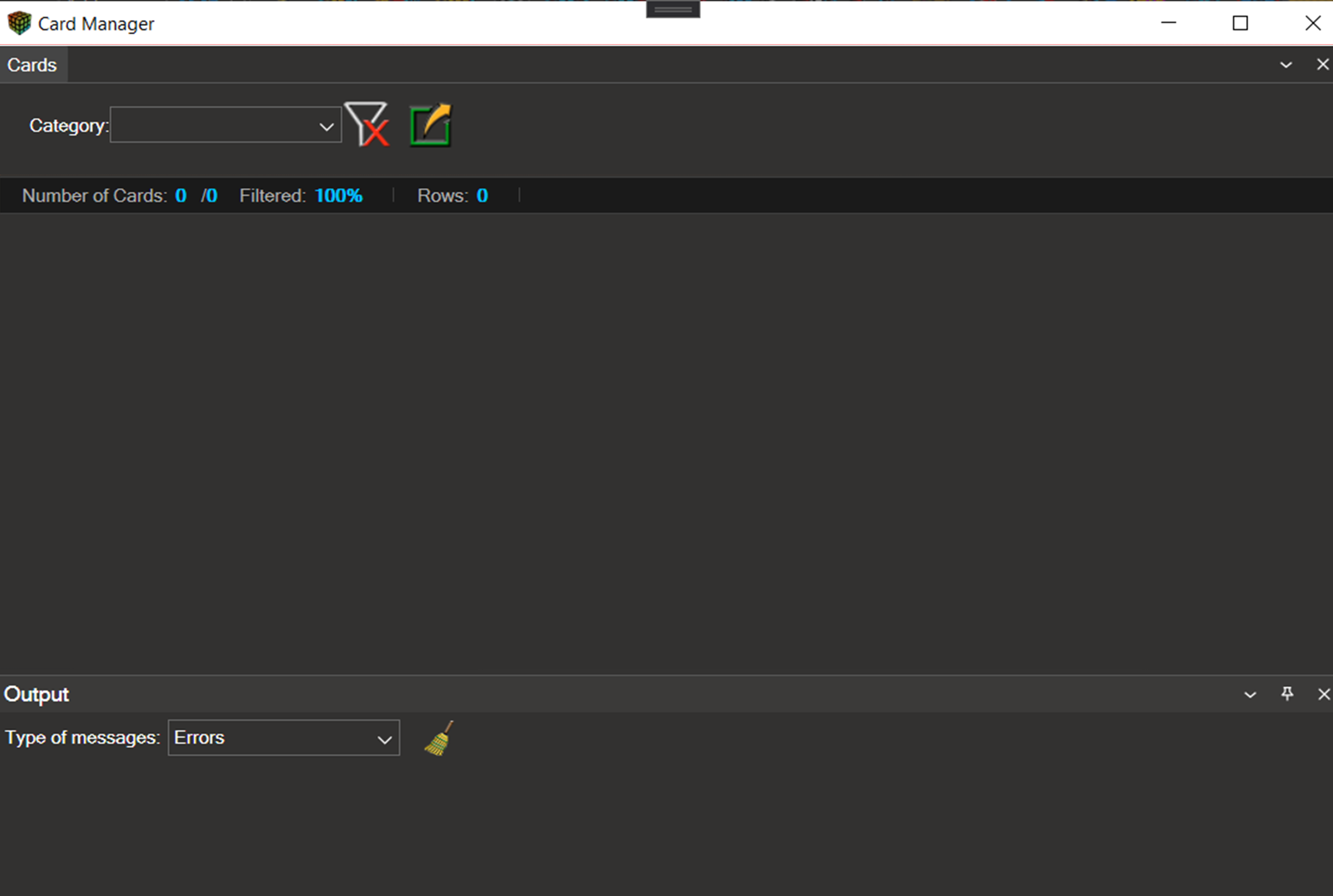
19.2. Card Manager Interface and Tools Overview#
19.2.1. General Layout of the Card Manager Interface#
The interface is organized into:
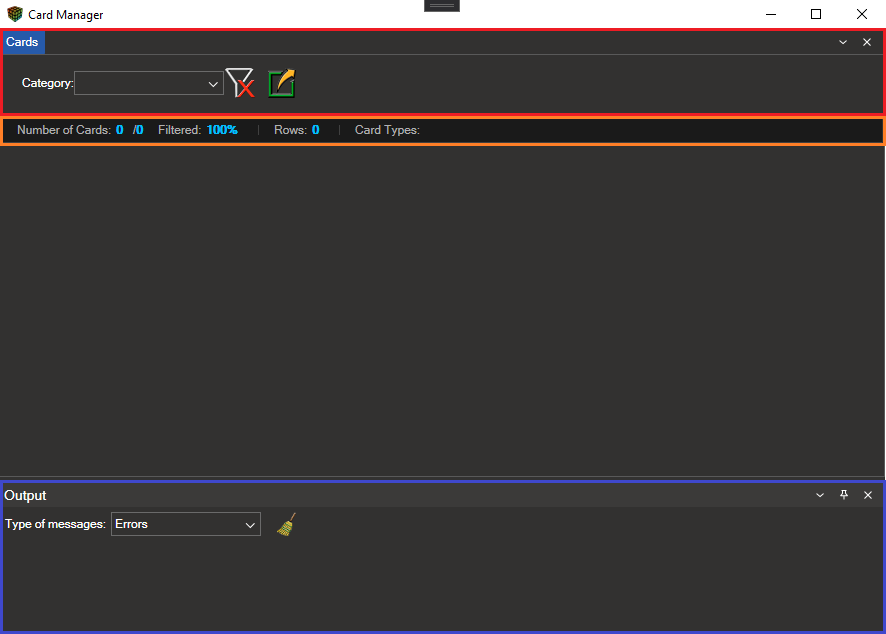
Top Panel (Cards)
Category Filters: Isolate and display specific cards by type. Available categories include: Material, Property, Load, Constraint, Grid, Element, Connector, CoordinateSystem, Displayed, and Failed Cards.
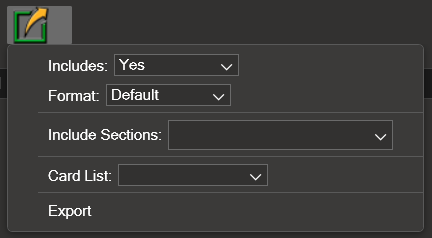
Export: This button opens a menu with advanced options to export the selected or filtered cards. It allows users to configure the output format, choose which sections to include, and set other parameters required to generate a new input file (.bdf, .dat, etc.) containing the applied modifications.
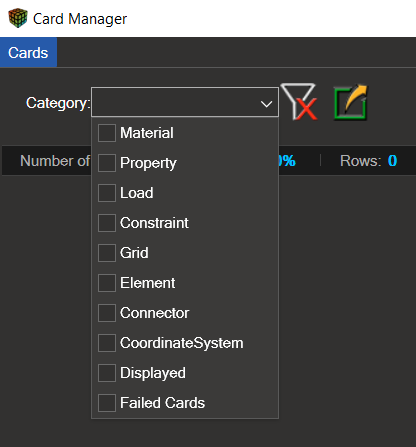
Status Bar
Number of Cards x / y
x: Number of cards matching all applied filters (Filtered Card Manager list).
y: Total number of cards available under the selected categories (Card Manager list).
Filtered x%: Filtered percentage.
Rows r: Number of rows of the largest displayed card.
Card Types: List of the card types currently present in the card deck, updated in real time as cards are created, modified, filtered or removed.

Bottom Panel (Output)
The Output panel functions as a message console that provides feedback to the user about the operations performed in the software.
Message Level: This selector allows users to control which types of messages are displayed in the Output panel.
You can choose to show all messages (Select All) or filter them by category:
Warnings
Errors
Success (successful operations)
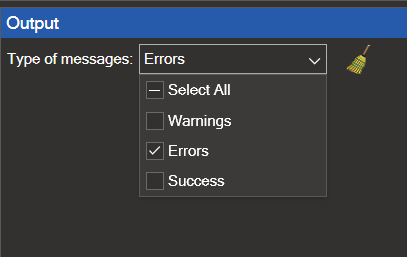
This feature is particularly useful for debugging errors or verifying that a set of modifications has been applied correctly.
To display specific messages in the Output panel, the corresponding message level must be enabled.
For example, if Warnings are disabled and an operation triggers a warning, that message will not appear in the panel because the warning level is turned off.
Next to this menu, there is a broom icon ( ); clicking it clears the content displayed in the Output window.
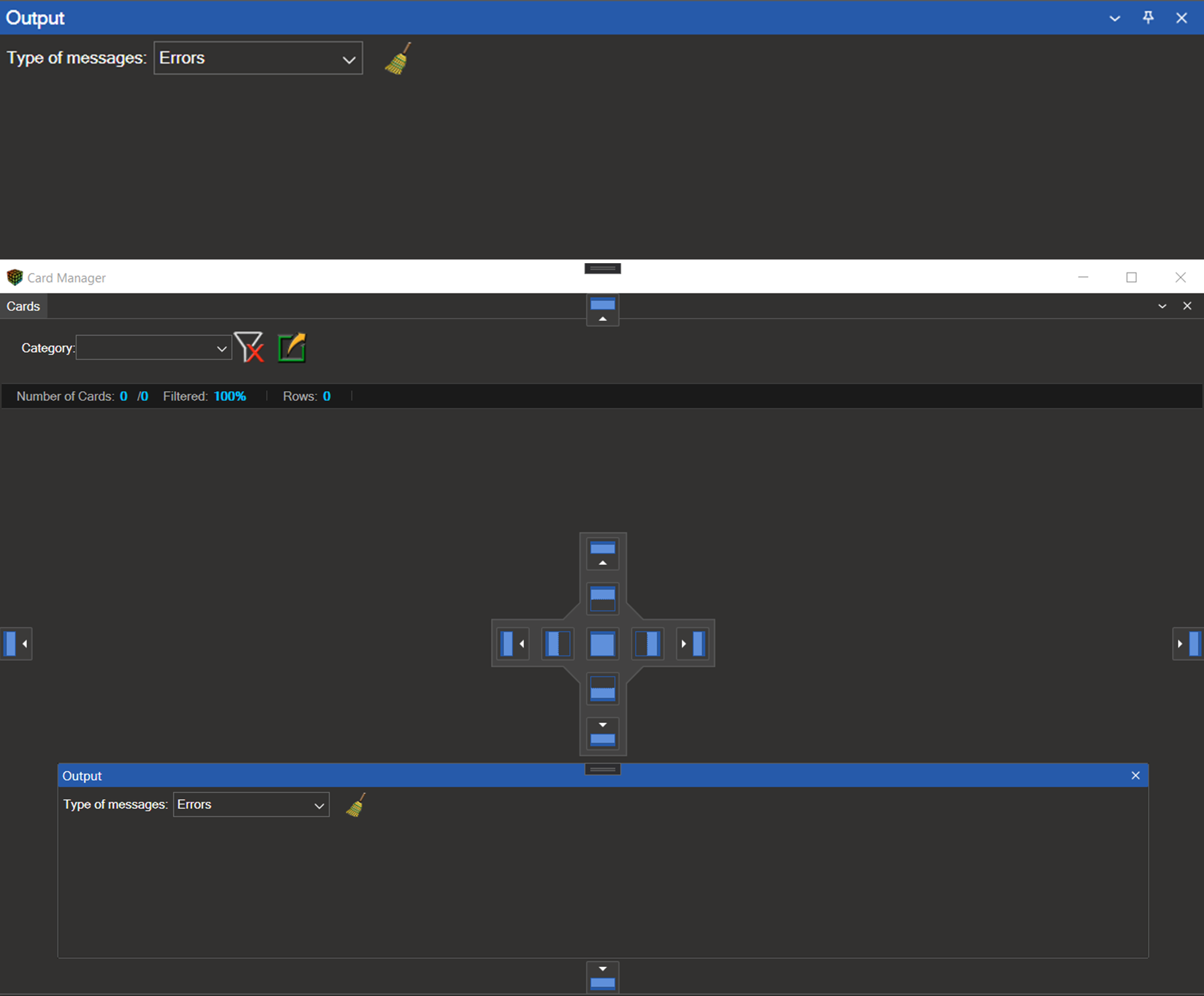
The Output panel operates independently from the main Card Manager window. Users can detach it and position it anywhere on the screen to optimize their workflow and improve visibility of the information displayed.
19.2.2. Working Modes: Bulk Card Manager and Individual Card Manager#
The Card Manager provides two working modes, accessible through tabs at the top of the window:
Bulk Card Manager — Preserves the traditional deck-based workflow. Cards are grouped together and a single Fixed Format Table is shown on screen, while the rest of the deck remains active in the background. Filters and positional edits apply to the whole deck simultaneously, which makes this mode efficient for mass operations on homogeneous sets of cards.
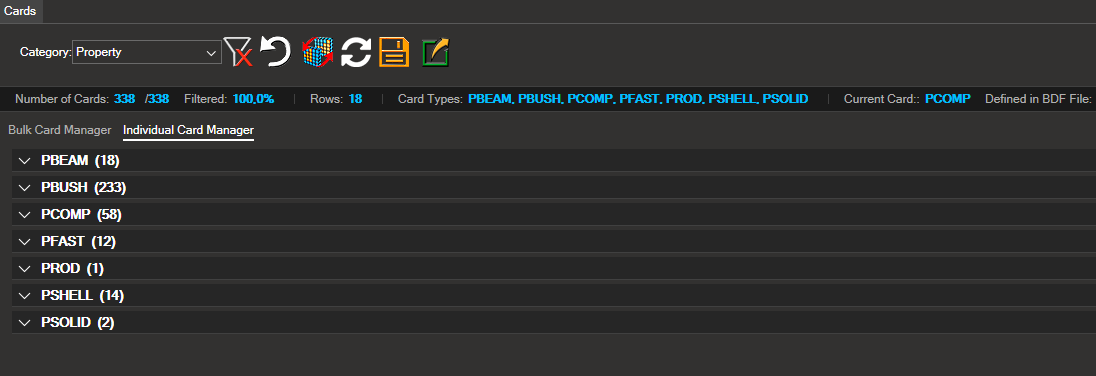
Individual Card Manager — Displays the loaded cards organized by type under collapsible headers (one header per card type, e.g.
GRID,MAT2,CQUAD4). Each card can be expanded individually to inspect or edit its own Fixed Format Table, and right-click menus allow the creation, deletion, and execution of methods on a per-card basis.
Both tabs share the same set of loaded cards: switching tabs does not reload the model and any change made in one mode is immediately reflected in the other.

19.3. Loading (with prior selection)#
The Card Manager offers two workflows for loading and viewing cards, depending on whether you want to work with a previously identified set of entities in the 3D window or explore cards globally by category.
19.3.1. Contextual loading (with a prior 3D selection)#
From the 3D view, select Nodes, Elements, or Coordinate Systems and then open the Card Manager — the cards associated with that selection will be loaded.
Note: The Elements category includes both finite element cards (e.g.,
CQUAD4,CTRIA3) and connector cards (e.g.,RBE2,RBE3).
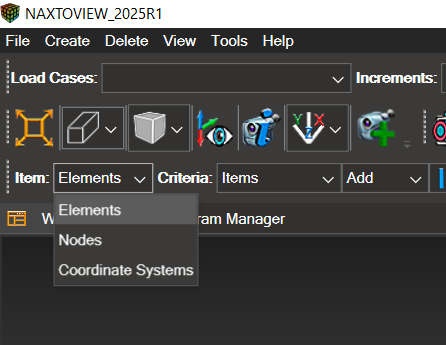
This method is designed to speed up the editing of specific entities that the user has already visually identified in NaxToView’s 3D window. If the Card Manager is opened while there is an active selection of Nodes, Elements, or Coordinate Systems, the tool will automatically start with the cards corresponding to that selection already loaded.
Workflow:
Select one or more entities in the 3D graphics window (e.g., a group of elements or nodes).
Click the Card Manager icon in the toolbar.
The Card Manager opens with the cards associated to the selected entities, ready for inspection or editing.
This approach is ideal for quick, precise modifications to a specific subset of the model.
19.3.2. Manual loading (without selection)#
Use this method when there is no active 3D selection or if you want to explore the entire model by categories.
Workflow:
Ensure there is no active selection.
Open the Card Manager (counter shows: Number of Cards: 0 / [Total]).
In Category, select one or more of: Material, Property, Load, Constraint, Grid, Element, Connector, CoordinateSystem.
The corresponding cards are loaded.
• You can combine multiple categories (they are not mutually exclusive).
• One card will be displayed on screen; the rest remain loaded in the background (the visible one is the card with the highest number of rows).
Categories
Material: Physical material properties (e.g.,
MAT1,MAT2,MAT8).Property: Geometric/constitutive properties (e.g.,
PSHELL,PCOMP,PBAR,PSOLID).Load: Loads and boundary conditions (e.g.,
FORCE,MOMENT,LOAD).Constraint: Constraints and coupling equations (e.g.,
SPC,SPC1,MPC).Grid: Mesh nodes: ID and coordinates (
GRID).Element: Finite elements connecting nodes (e.g.,
CQUAD4,CTRIA3,CHEXA,CBAR,CELAS1).Connector: Special connectors/joints (e.g.,
RBE2,RBE3,RSPLINE).CoordinateSystem: Local coordinate systems (e.g.,
CORD1C,CORD2R).
Special Categories
Displayed: Loads the cards of elements currently visible in the 3D view (exclusive — cannot be combined with other categories).
Examples:
Isolate CQUAD4 in the Model Tree → Displayed loads only those cards.
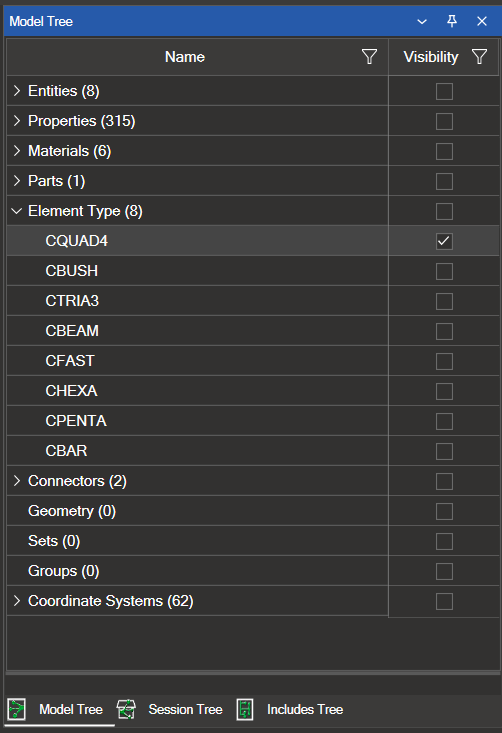
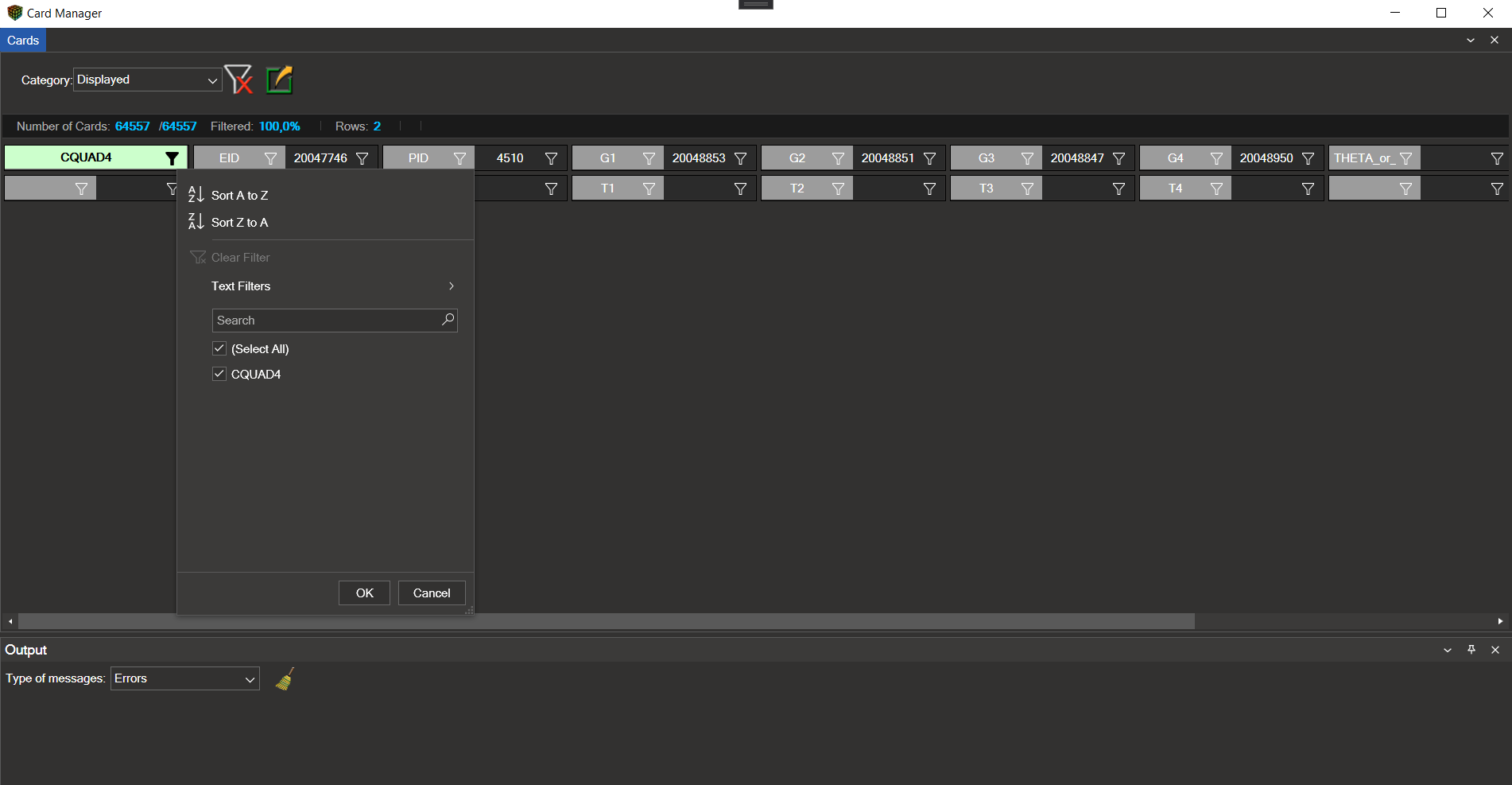
Show elements with PID = 4510 → Displayed loads only those cards.
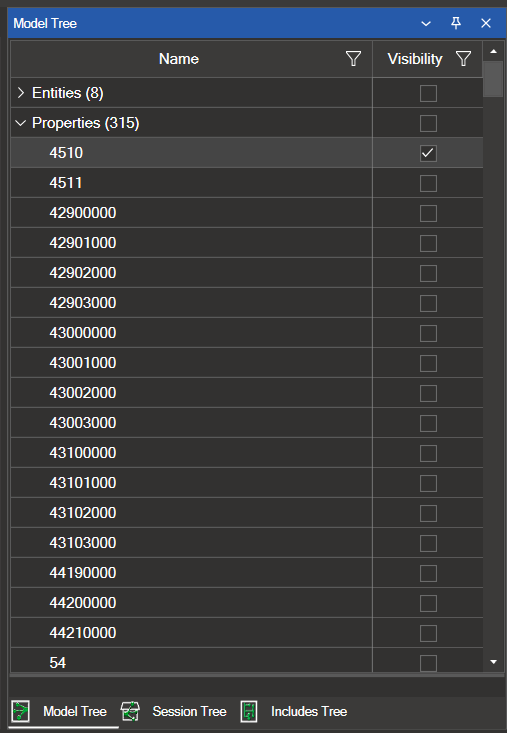
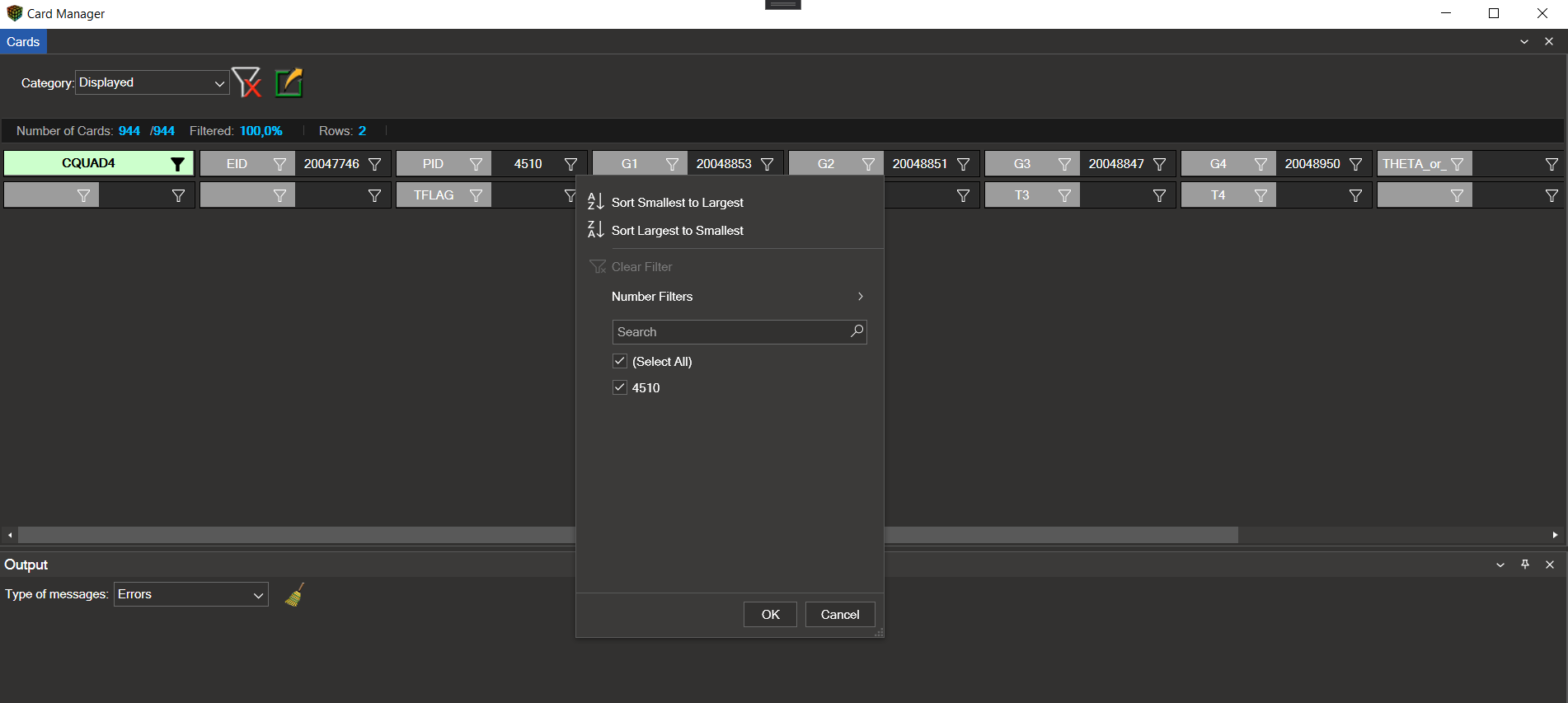
Important notes on the Displayed category:
• Shows only the cards of elements visible in the 3D view (visibility is element-based).
• What Displayed loads depends on Model Tree filters (property, material, etc.).
• When opening Displayed, it exclusively loads the cards of elements currently visible.
• Connectors count as elements and are also included.
Failed: Displays all cards with formatting or value errors, regardless of category, for quick diagnosis/correction. Based on the official Fixed Format Table (NASTRAN/OptiStruct). Invalid fields are marked with codes:
Integer:
-87Real:
3.402823E+38Text:
FIELDMAPPING_ERROR
How to fix: Edit the marked fields and replace codes with valid values. After exporting and reloading, the corrected cards will no longer appear under Failed Cards.
Important Notes on Card Selection and Visualization:
You can combine multiple categories simultaneously (except special ones).
The Card Manager displays only one card at a time, but keeps the rest loaded in the background like a deck. The visible card is always the one with the largest number of rows.
For a category selection to be applied, close the dropdown or click outside it to confirm.
Important Notes on Card Manager Interface Interaction
For category selections to be applied, close the dropdown menu or click outside of it. Only then will the Card Manager load the corresponding cards.
19.4. Graphical Representation of Information — Visual Structure of Cards#
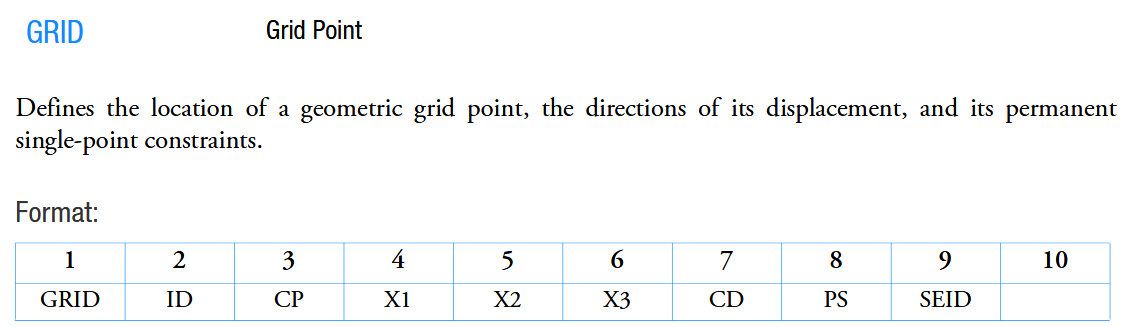
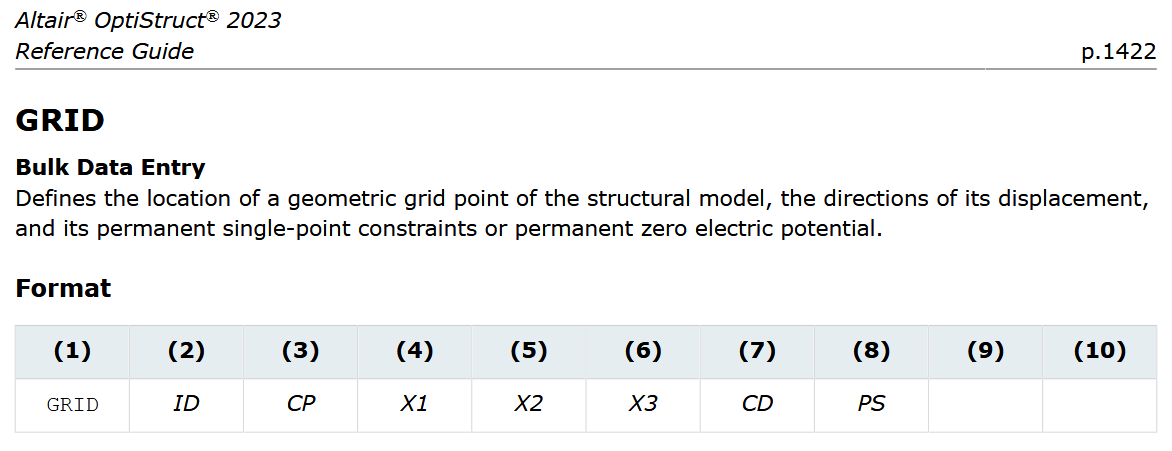
The same NASTRAN/OptiStruct card can be written in Small, Large, Free, or FreeLarge formats. These formats only affect how the card is written; the fields and their values remain identical. To describe them uniformly, both solvers use the Fixed Format Table — a standard table that defines the position and meaning of each field. What is the Fixed Format Table
19.4.1. Fixed Format Table#
A standard table used by both solvers that defines the position and meaning of each field:
Structure: 10 columns × as many rows as needed.
Independent of file format: Applicable to Small/Large/Free/FreeLarge.
Purpose: Common reading structure, easy comparison, and universal reference.
Below is an example of the Fixed Format Table for the GRID card according to NASTRAN and OptiStruct documentation, respectively:
19.4.2. How the Card Manager uses it (Hybrid View)#
The Card Manager replicates the Fixed Format Table and merges the theoretical reference with the actual values from the file:
Left sub-cell (grey): Field label (e.g., EID, PID, G1, X1, CID).
Right sub-cell (black, white text): Editable real value from the model.

Header (green): Card type (
GRID,CROD,RBE2, etc.).

Result: You can see both the field name and its value without switching between manuals and plain text
Example:
CROD documentation fields: `EID`, `PID`, `G1`, `G2`
File values: `1001`, `20`, `15`, `27`
On screen: `EID / 1001 | PID / 20 | G1 / 15 | G2 / 27`
Advantages
Clarity and educational value: theory and real data in a single view.
Faster validation/correction: incorrect positions are easy to spot.
Consistency with NASTRAN/OptiStruct standards.
Example of the hybrid Fixed Format Table approach for a GRID card:

Navigation and Screen Space
Not all 10 columns always fit on the screen simultaneously.
Use the horizontal scroll bar (at the bottom) to navigate through columns and edit any field, even for large or multi-row cards.
19.5. Card Filtering in the Card Manager#
Note: The filtering workflow described in this section applies to the Bulk Card Manager tab, where the loaded cards are managed as a single deck.
Filtering allows you to work only with specific groups of cards. Remember that each card is displayed as a Fixed Format Table: each cell has two sub-cells → left (identifier according to NASTRAN documentation) and right (numerical/text value from the file).
19.5.1. Working Context#
Only one card (the one with the highest number of rows) is displayed on screen, but a stack of cards can be loaded in the background.
Check the status bar to see how many cards you are managing at any given time.
19.5.2. Filter Locations:#
Each sub-cell (identifier and value) has its own filter button.

Icon states:
Highlighted → an active filter is applied to that sub-cell.

Normal → no filter applied.

To open the filter, click the sub-cell’s icon. A contextual menu will appear, adapted to the data type (text or number).
19.5.3. Filters for Text Cells (identifiers, e.g. EID, PID, G1…)#
Sort: Sort A to Z / Sort Z to A.
Clear: Clear Filter.
Value selection: List of unique values with checkboxes + search bar for long lists.
Advanced Text Filters:
• Equals / Does Not Equal
• Begins With / Does Not Begin With
• Ends With / Does Not End With
• Contains / Does Not Contain
• Empty / Not Empty
• Null / Not Null
19.5.4. Filters for Numeric Cells#
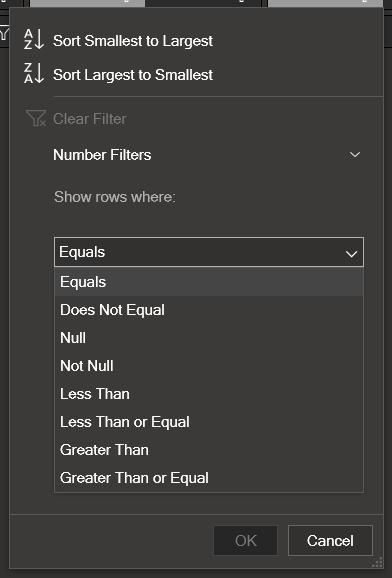
Sort: Smallest → Largest / Largest → Smallest.
Clear: Clear Filter.
Advanced Number Filters:
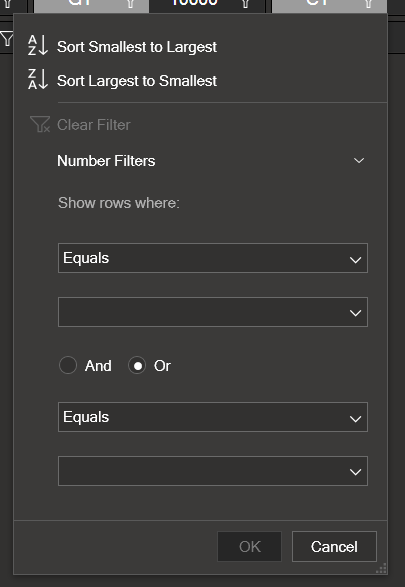
o Comparison: Equals / ≠ / < / ≤ / > / ≥ / Null / Not Null.
o Compound filters: combine two conditions with And (both must be true) or Or (at least one must be true).
    Example (PID between 1000 and 2000):
    -Condition 1: Greater Than or Equal → 1000
    -Operator: And
    -Condition 2: Less Than or Equal → 2000
19.5.5. Application and feedback#
OK applies the filter; Cancel discards it.
The Number of Cards counter updates instantly with the result.
19.5.6. Reset filters#
Individual: Click the highlighted icon of that sub-cell → Clear Filter (only that column’s filter is cleared).
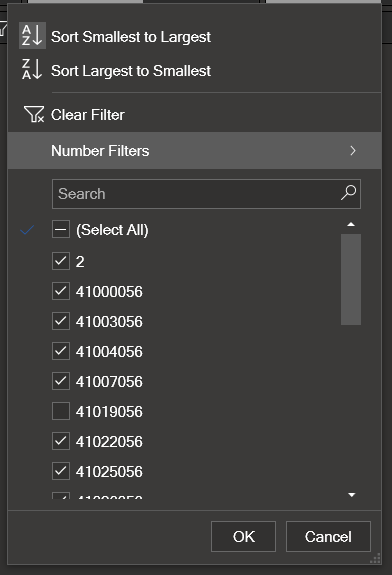
Global: Click the funnel icon with an “X” (next to Category) → clears all filters and returns to the initial state after category loading.

19.5.7. System Behavior (Static vs. Dynamic)#
When you apply a filter on a sub-cell:
In that sub-cell, filtering is static: the menu still shows all possible values from the original dataset.
o Values that meet the filter criteria are checked.
o Values that don’t are still visible but unchecked.
In the other sub-cells, filtering is dynamic: only the values corresponding to the subset that passed the previous filter will be shown.
  Example:
  -You load CQUAD4 cards and filter EID between 1 and 10,000.
  -In EID (filtered cell), you’ll see all possible EID values (with valid ones checked).
  -In PID, MID, THETA, etc., you’ll only see the values belonging to the cards that match the EID range.
19.6. Editing Cards in the Card Manager#
Note: The editing workflow described in this section applies to the Bulk Card Manager tab, where positional edits propagate across the entire active deck. For per-card editing, see section 19.7.
Editing allows you to modify one or multiple fields of one or many cards simultaneously within the loaded set.
Key Concept: “One Visible, Many Active”
Only one card is displayed on screen — the one with the largest number of rows (its Fixed Format Table is the biggest).
However, a “deck” of active cards is loaded in the background and ready to be edited.
Use the status bar to check how many cards are currently being affected.
Positional Editing (Very Important)
Changes are applied by position (row, column) in the Fixed Format Table to all active cards.
This means that the same position can represent different fields in different card types.
Example
Suppose the user has two types of cards loaded in the active set:
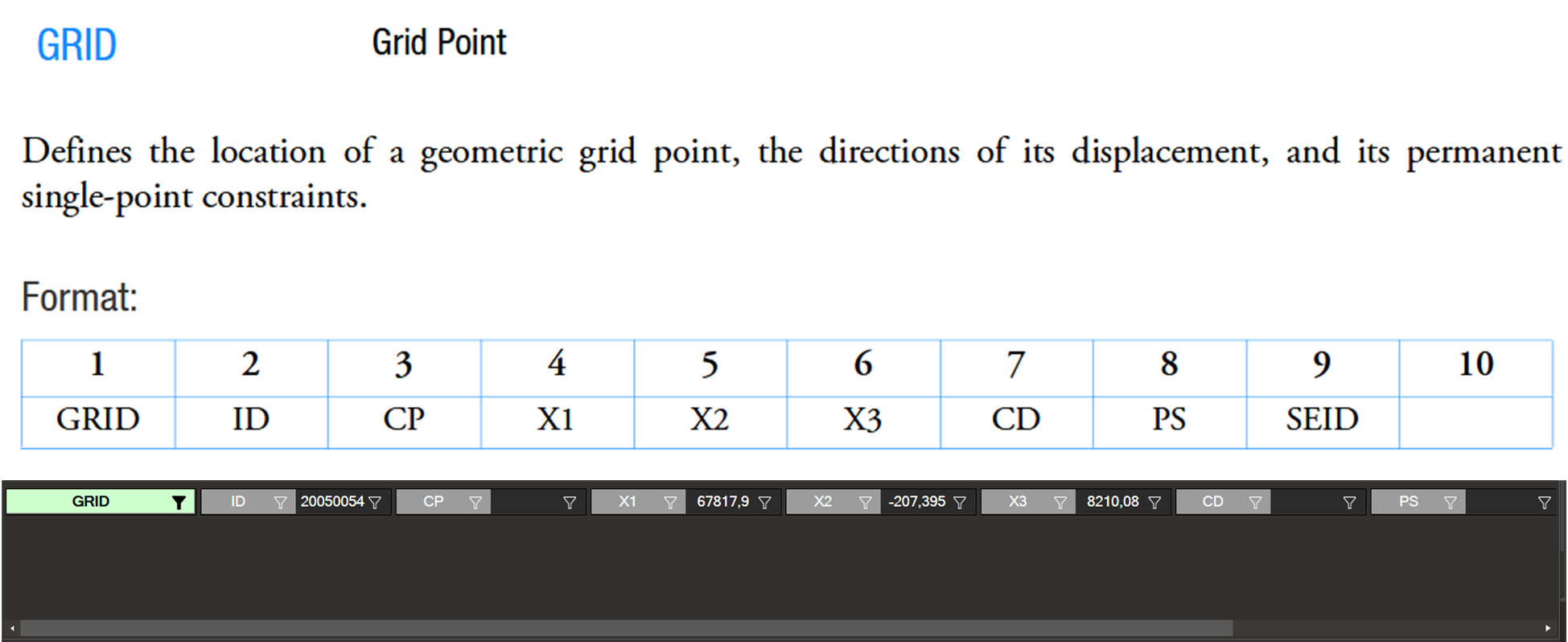
•	GRID, with the following Fixed Format Table:
• CQUAD4, with the following Fixed Format Table:
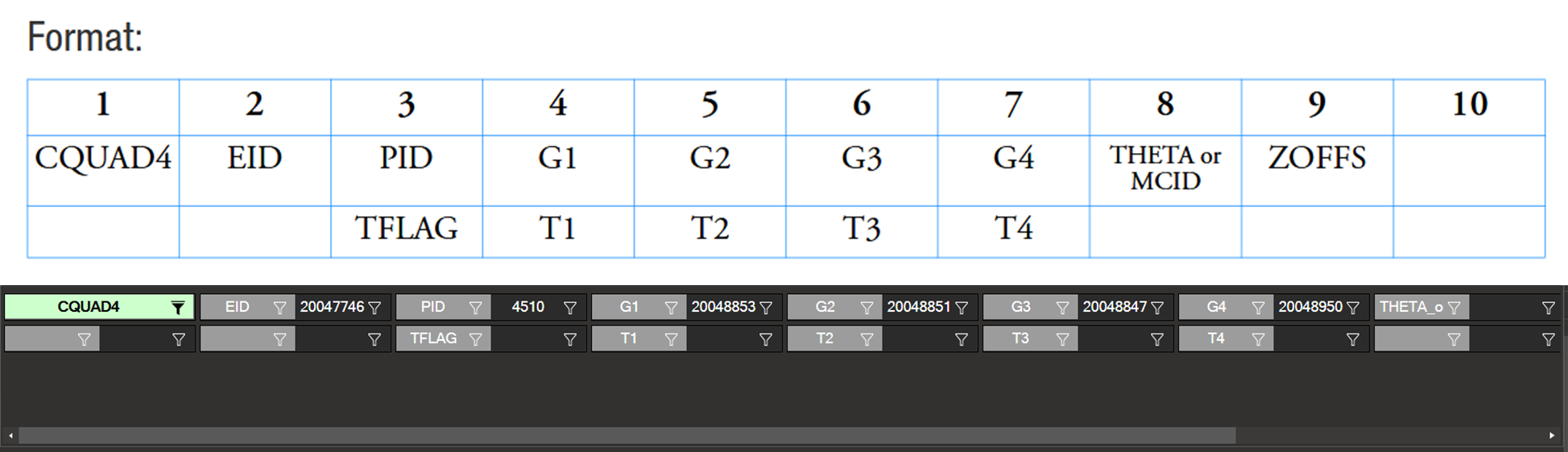
Because the CQUAD4 card has more rows, it is the one displayed on screen. However, this does not mean that the GRID cards are inactive — both types are loaded in the working “deck.”
19.6.1. What Happens When a Field is Modified#
If the user decides to edit position (1,4) — which corresponds to field G1 in the CQUAD4— the Card Manager will apply that same change to position (1,4) of all active cards, even if they belong to different types. In this example:
In CQUAD4, position (1,4) is G1 (ID of the first node).
In GRID, position (1,4) is X1 (X-coordinate of the node).
Therefore, editing position (1,4) while viewing a CQUAD4 card will also modify the X1 field of all GRID cards in the active set, even though they are not visible on screen.
This behavior is intentional, as it allows a single operation to be applied efficiently and consistently to a group of cards. However, it also means the user must be fully aware of which cards are included in the active set — especially when it consists of a heterogeneous group (i.e., multiple card types or categories).
19.6.2. Validation and Feedback#
Each field is validated according to official NASTRAN/OptiStruct rules before changes are accepted:
Success: Valid change (displayed if this message level is enabled).
Warning: Accepted but unusual or potentially inconsistent value.
Error: Invalid value → the change is not applied.
All messages appear in the Output panel.
19.6.3. Best Practices before edit#
Check which cards are included in the active set.
Avoid positional edits on heterogeneous sets unless you fully understand the impact.
19.6.4. How to Edit a Field#
Right-click the value sub-cell you want to modify
Select Edit.
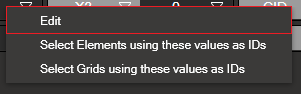
In the edit window, enter the new value and confirm.
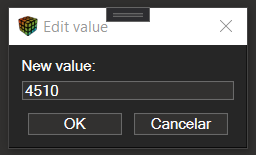
Decimals: Use comma `,` as decimal separator (e.g., `3,25`). A dot `.` will not be recognized correctly.
Undo Changes#
After making modifications to a field, you can undo the changes in two ways:
Keyboard shortcut: Press
Ctrl+Zto undo the last modification.Undo button: Click the undo button in the toolbar.

You can undo all modifications one by one, reversing each change in the order they were made. This allows you to step back through your editing history and revert any unwanted modifications.
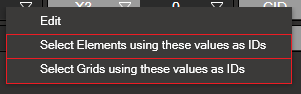
19.6.5. Select Elements/Nodes Using Cell Values#
You can quickly select model entities (elements or grids/nodes) using the IDs shown in one or more selected cells of the table.
Steps:
Right-click one cell to open the context menu.
Choose the desired action:
Select Elements using these values as IDs: selects all elements whose IDs match the values in the selected cell.Select Grids using these values as IDs: selects all grids/nodes whose IDs match the values in the selected cell.
Notes:
All numeric values in the selection are used as IDs.
If a value does not correspond to any existing entity, it is ignored.
The current selection in the viewport updates immediately after the command.
19.6.6. Select Elements from Filtered Card Manager#
You can select all elements associated with the cards currently displayed in your Filtered Card Manager. This function searches for all element cards available in the Filtered Card Manager and selects the corresponding elements in the viewport, as well as all elements referenced in the property cards.
To use this function:
Click the Select Elements from Filtered Card Manager button in the toolbar.

This action will:
Identify all element cards present in the Filtered Card Manager
Select all corresponding elements in the 3D viewport
Also select all elements referenced in the property cards available in the Filtered Card Manager
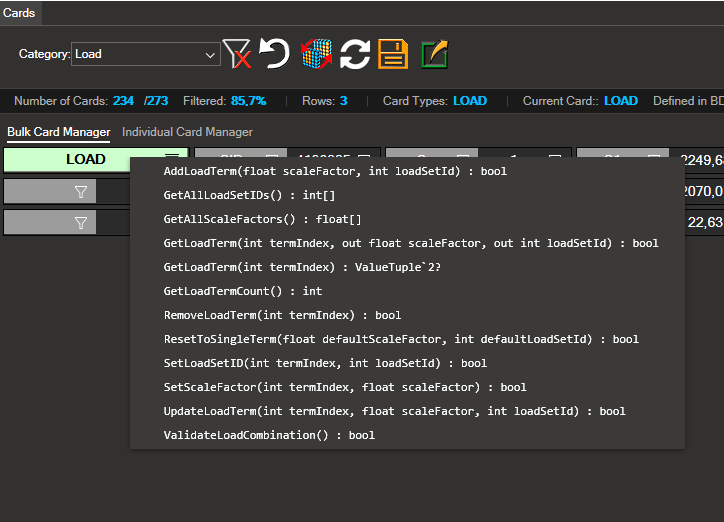
19.6.7. Apply a Method to All Cards in the Deck#
When the active deck contains cards of a single type, you can execute a card-specific method on every card in the deck in one step:
Make sure all cards loaded in the Bulk Card Manager belong to the same type. If the deck is heterogeneous, narrow it down first using the Category selector and the column filters described in section 19.5.
Right-click the first cell of the deck (the top-left cell of the displayed Fixed Format Table).
A context menu appears listing the methods available for that card type.
Select the desired method. The Card Manager applies it automatically to every card in the deck.
If the deck contains cards of more than one type, the context menu indicates that the deck must first be filtered down to a single card type before any bulk method can be executed.
19.7. Individual Card Manager#
The Individual Card Manager tab provides a per-card view of the loaded set. Instead of the deck-based representation used in the Bulk tab, cards are organized under collapsible headers grouped by card type, and every card can be inspected and edited on its own.
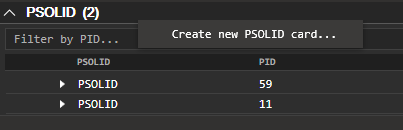
19.7.2. Creating a New Card#
To create a new card of an existing type:
Right-click the header of the card type you want to add.
Select the option to create a new card in the context menu that appears.
The Card Manager creates a new card of that type and adds it under the corresponding header, ready for editing.
19.7.3. Editing a Field#
Within an expanded card, double-click any value sub-cell of the Fixed Format Table to open the inline editor and modify its value. Validation rules and feedback messages behave exactly as in the Bulk Card Manager (see section 19.6.2), but the change is applied only to the card being edited — other cards of the same type are not affected.
After a field is modified, the corresponding card is flagged with the blue edited indicator described in section 19.7.5.
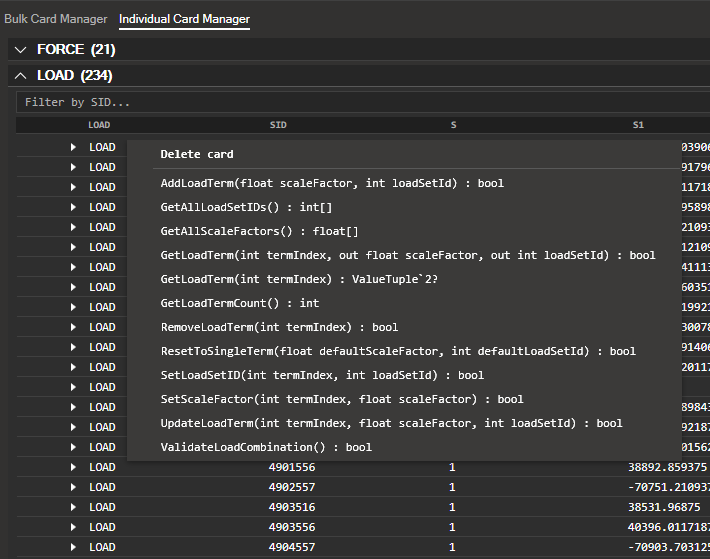
19.7.4. Deleting a Card or Executing Methods#
Right-clicking on an individual card opens a context menu that allows you to:
Delete the card, removing it from the working set.
Execute any of the methods available for that card type. The method is applied only to the selected card.
19.7.5. Status Indicators#
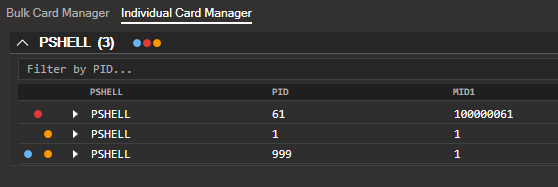
To make it easier to follow the state of every card while you work, the Individual Card Manager displays a colored dot next to each card:
Orange — the card has been created in the current session.
Blue — the card has been edited with respect to its original values.
Red — the card contains an error (invalid values or formatting issues, equivalent to the cards listed under the Failed category).
These indicators update in real time as you work with the cards, providing an immediate visual summary of the changes made and the current state of every element. As noted in the introduction to this chapter, these status updates apply to the Card Manager view itself; the 3D model is only refreshed after exporting and reloading the file.
19.8. Controlling Message Display (Output)#
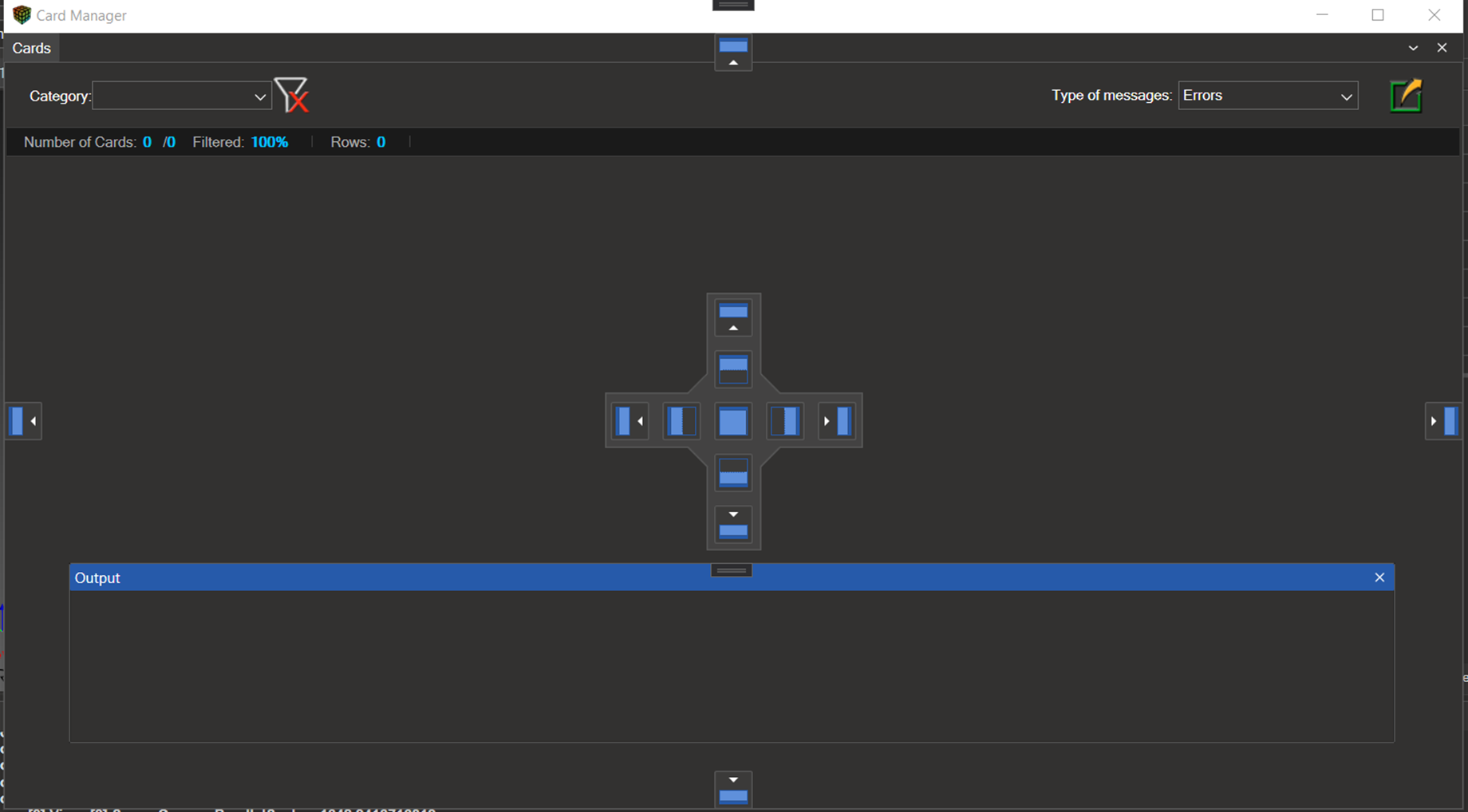
The Card Manager Output panel acts as a feedback console: here you can see, in real time, whether your actions have been executed successfully or if any issues occurred.
19.8.1. Message Types and Colors#
Error (red): Operation could not be completed (e.g., invalid value).

Warning (yellow/orange): Operation executed with irregularity (e.g., negative density).
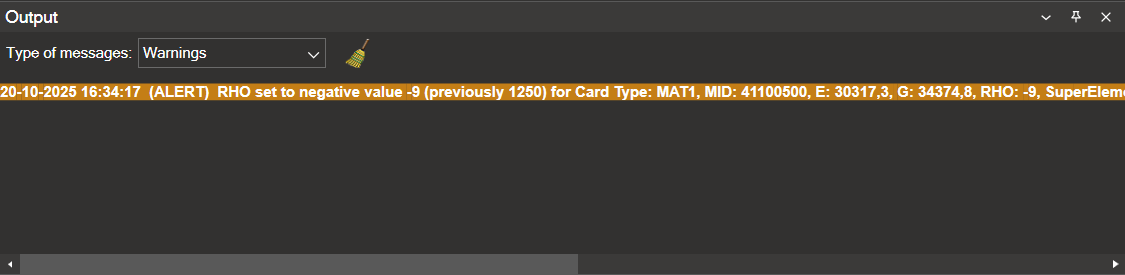
Success (white): Operation completed successfully.

19.8.2. Configuring Which Messages to Display#
You can enable or disable each message level independently or in combination.
Control this through the message level dropdown menu at the top of the panel.
If no levels are selected, the system automatically enables Error messages by default to ensure that critical issues are always visible.
19.9. Reverting Modifications and Overwriting the Model#
In addition to filtering, editing, and exporting, the Card Manager toolbar provides two global actions that operate over the whole loaded set of cards regardless of the active tab: Revert All Modifications and Overwrite Model.
19.9.1. Revert All Modifications#
The Revert All Modifications button ( ) discards every change made during the current Card Manager session and returns the loaded files to the state they had when they were originally opened. Specifically, this action:
Restores all field values that have been edited back to their original values.
Removes every card that has been created during the session.
Clears all status indicators (orange / blue / red dots) shown in the Individual Card Manager.
The operation is global and affects both the Bulk Card Manager and the Individual Card Manager simultaneously.
Tip: Use Revert All Modifications when you want to discard the full editing history in a single step. For a step-by-step undo, use
Ctrl+Zor the Undo button described in section 19.6.4.
19.9.2. Overwrite Model#
The Overwrite Model button ( ) writes the current modifications back onto the original input files on disk. The Card Manager automatically detects which
 .bdf, .dat, or .inc files contain changes and overwrites only those files; files without modifications are left untouched.
This action is different from Export (see section 19.10):
Export generates a new input file in a folder chosen by the user, without altering the original files.
Overwrite Model updates the original input files in place, replacing them with the modified versions detected by the Card Manager.
Warning: Overwriting is a destructive operation on the original files. Make sure you have a backup or a version-controlled copy if you may need to recover the unmodified state later.
19.10. Model Export#
Exporting allows you to generate an input file (.bdf, .dat, etc.) containing the changes made in the Card Manager.
The export menu is located in the top-right corner of the interface.
To access it, simply click the corresponding export icon ( ).
).
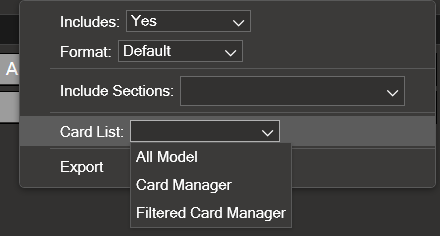
19.10.1. Export Options#
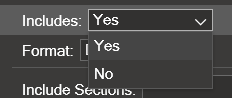
Includes
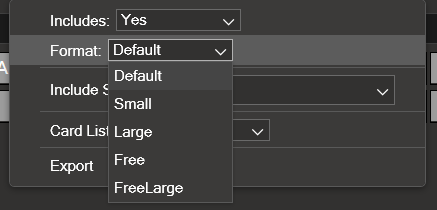
Format
Default: Rewrites each card in the same format it was originally read (recommended).
Small: 8-character fields (more compact).
Large: 16-character fields (more precision/readability).
Free: Comma-separated, variable-width.
FreeLarge: Variant for cards with many fields or long values.
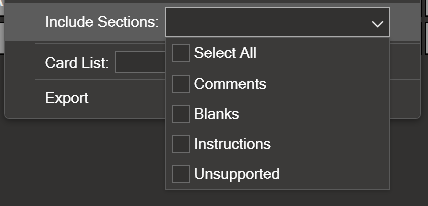
Include Sections
Comments (lines starting with
$).Blanks (blank lines from the original file).
Instructions (CASE CONTROL,
PARAM, etc.).Unsupported (cards/fields not supported by the tool to ensure data integrity).
Card List
All Model: Exports the entire model loaded in NaxToView (ignores Card Manager filters).
Card Manager: Exports only the categories selected in Category.
Filtered Card Manager: Exports only the result after applying all filters (e.g., elements with
PID = 30).
19.10.2. Export Process (Step by Step)#
Configure options in the contextual menu.
Click Export.
Choose the destination folder in the system file explorer.
Enter the project name in the pop-up dialog.
The Card Manager creates a folder with that name and places the exported input file inside it (based on your configuration).
Tip:
To share a single clean file → Includes = No, Format = Default.
To preserve the modular architecture → Includes = Yes.