16. Attributes#
In finite element analysis (FEM), attributes are specific characteristics assigned to finite elements that define their behaviour and physical properties within the model. These attributes cover material, geometry, boundary conditions, and mechanical, thermal, or electrical properties, among others.
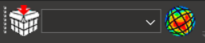
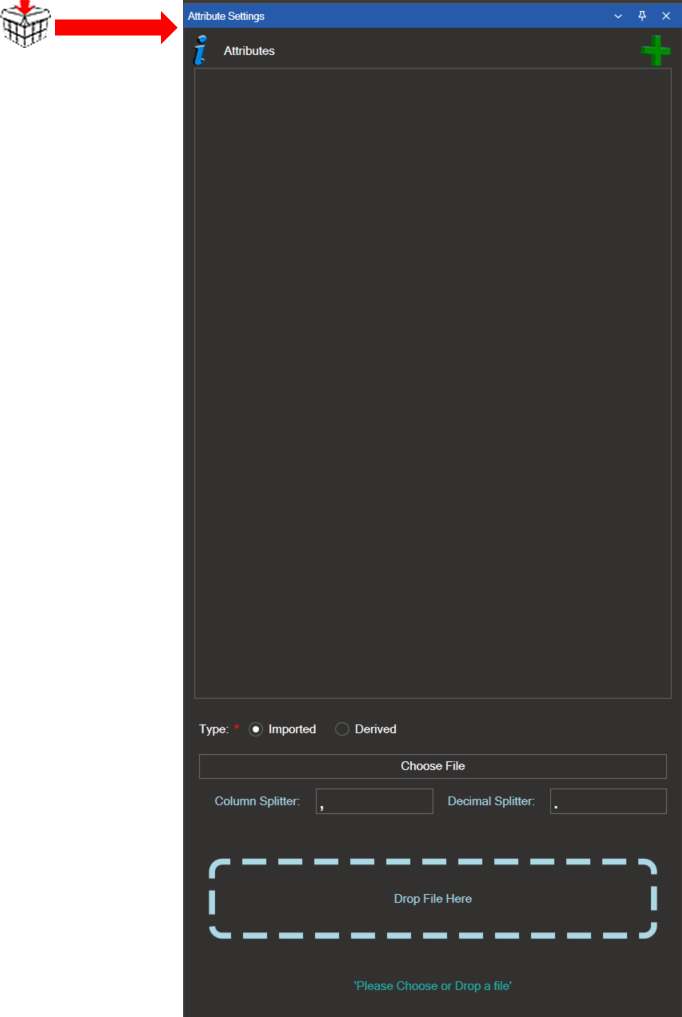
Click the first icon to open the Attributes window, where attributes can be created and edited.
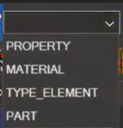
A dropdown list lets you select the attribute type to define. The list includes default options such as properties, material, element type, and parts. Once you create new attributes, they are added to this list automatically.
There are three types of attributes: Contour Attributes, Imported Attributes, and Derived Attributes.
16.1. Contour attributes#

Use the last icon to create contour attributes. Display the desired result contour on the model, then click this icon to save it as a contour attribute. The new contour attribute then appears in the dropdown list.
16.2. Imported attributes#
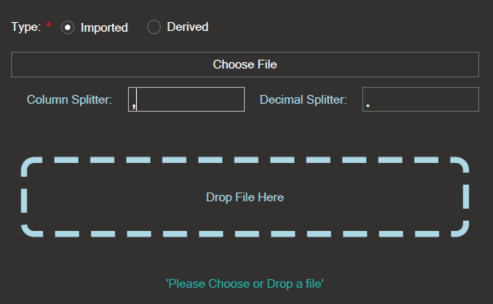
To create an imported attribute, import a .csv file containing the desired values. Browse to the file or drag it into the upload area. If the file format is invalid, the progress bar turns red and an error message is displayed. Click the + icon to load the file.
You can select attributes by element, by node, or by element node (each node then carries as many values as the number of elements to which it belongs).
16.2.1. How to create .csv files for imported attributes#
When By Elements is selected, the file must contain the following columns:
ID_E,Parts_E, andNew Attribute Name.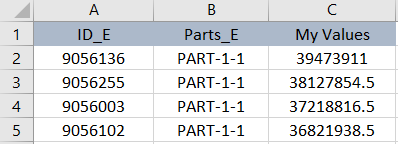
When By Nodes is selected, the file must contain the following mandatory columns:
ID_N,Parts_N, andNew Attribute Name.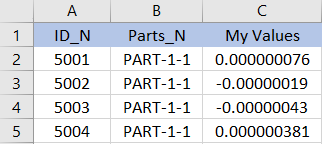
When By Node Elements is selected, the file must contain the following mandatory columns:
ID_E,Parts_E,REF_N(node reference list), andNew Attribute Name.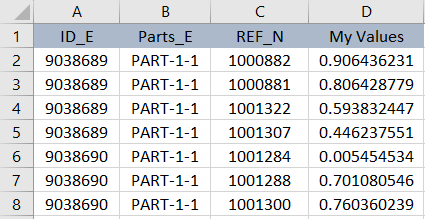
Important
The column and decimal separators in the .csv file must match the separators configured in the Imported Attributes panel. A mismatch will cause a loading error.

16.3. Derived attributes#
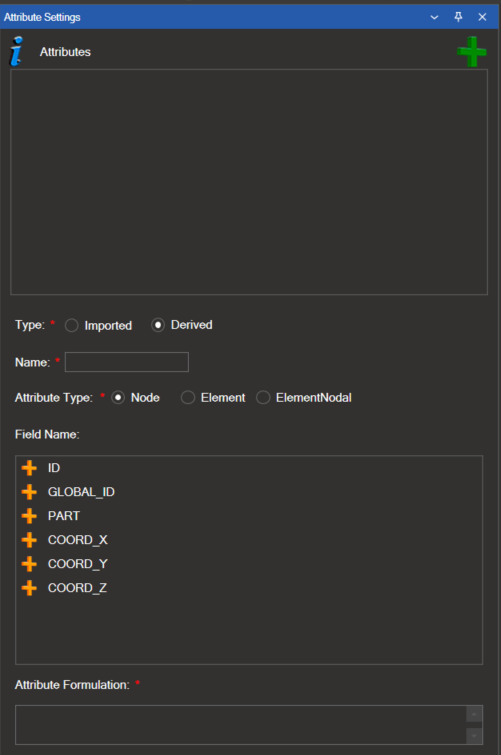
To create a derived attribute, follow these steps:
Enter a name for the attribute in the Attribute Name field.
Select the attribute type: Node, Element, or Elemental Node.
In the Field Name section, select the fields to include and click the orange + icon to add them to the list.
Apply the required operations to the selected fields. See section 21.5 for the full list of reserved words and supported arithmetic expressions.
Click the green + icon to add the field to the attribute definition.
The newly created attribute appears in the relevant list:
Node attributes appear under Nodes.
Element attributes appear under Elements.
Element Node attributes appear under Elemental Nodes.
Note
Only derived attributes can be edited directly. To edit a contour attribute or an imported attribute, convert it to a derived attribute first.