12. Derived Results#
The Derived Results window provides three methods for creating synthetic result quantities: derived load cases based on a function, derived load cases based on an envelope, and results derived from a component.

To open the Derived Results window, click the Derived Results icon in the toolbar.
This opens a window where you can create results based on combinations of different load cases or components using common functions.
12.1. Derived Load Cases#
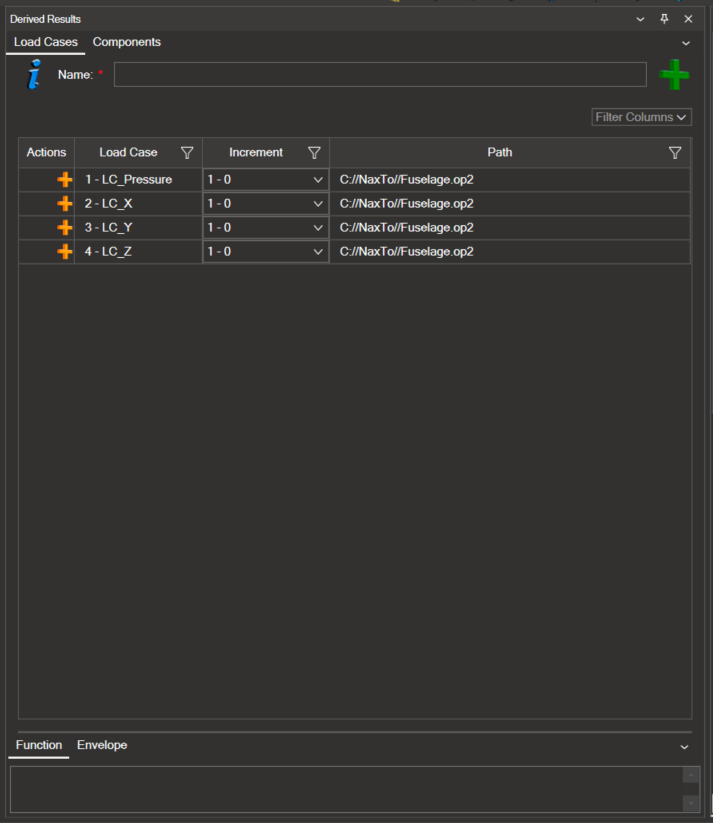
This option creates a new load case derived from existing ones.

Start by entering a name for the new load case.

Select the source load cases to combine by clicking the orange plus icon.

Use the table at the bottom to enter and combine expressions. For guidance on defining expressions, see section 21.3.

Click the green plus icon to finalize the new load case.
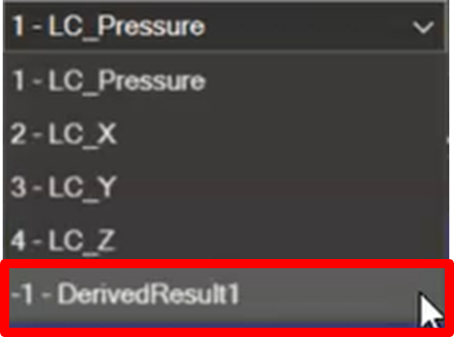
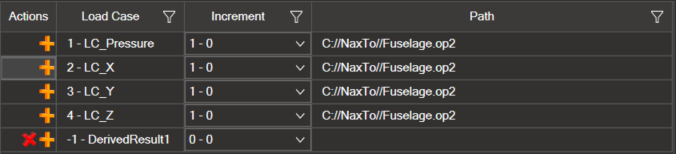
The newly derived load case also appears in the table with the original load cases. Derived load cases are identified by negative integer IDs.
12.2. Envelope Load Cases#
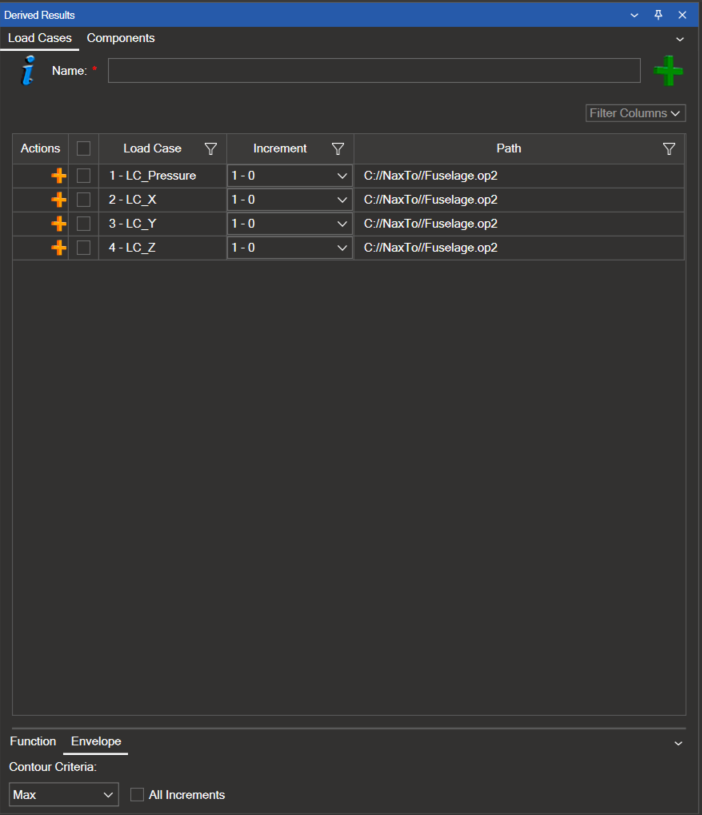
This option creates a new load case from a set of existing ones by computing the maximum, minimum, absolute-maximum, absolute-minimum, or range across those load cases.

Start by entering a name for the new load case.
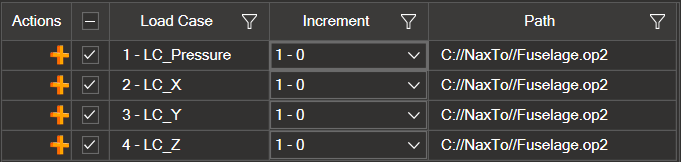
Select the load cases, increments, and results path. You can apply this to all or select specific ones.
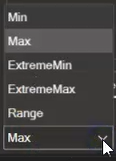
Specify the criterion to apply to the contour values across the selected load cases: Max, Min, ExtremMin, ExtremMax, or Range.
Select this checkbox to include all increments within each load case.

Click the green plus icon to create the new derived load case.
The new load case is then available for result plotting alongside the original load cases. Derived load cases are always negative integers, which differentiates them from original load cases.
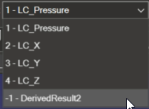
The newly derived load case also appears in the table with the original load cases.
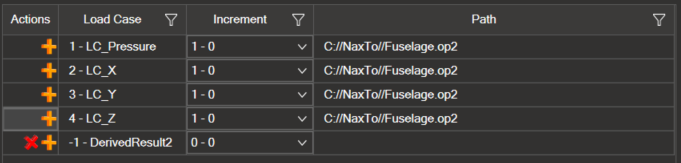
Once the derived load case is selected, use the Envelope section of the toolbar to specify the result type, component, and display mode.
For example, if the Maximum criterion was chosen, selecting STRESSES → VON_MISES → NONE displays the highest Von Mises stress value in each element across all selected load cases.
After creating the derived load case, an Envelope section appears in the toolbar.
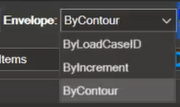
ByContour (default) — displays the envelope value (maximum, minimum, etc.) for each element in the selected component across the specified load cases.
ByLoadCaseID — colours each element with the ID of the load case that produced the governing (maximum, minimum, etc.) value.
ByIncrement — colours each element with the ID of the increment that produced the governing value.
12.3. Derived Components#
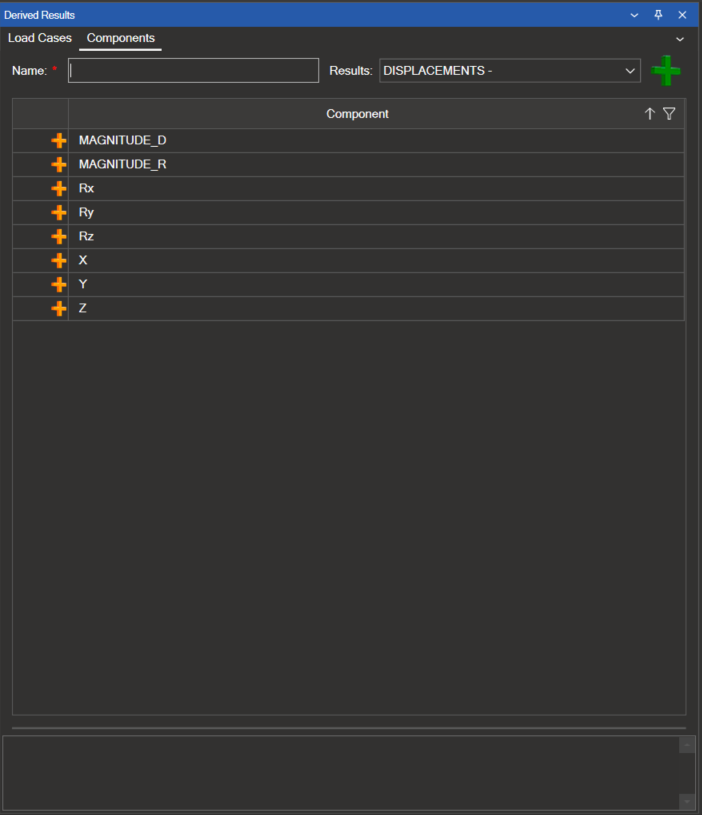
This option creates new components by combining existing ones within a result type.

Enter a name for the new component.
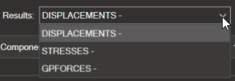
Select the result type it relates to.
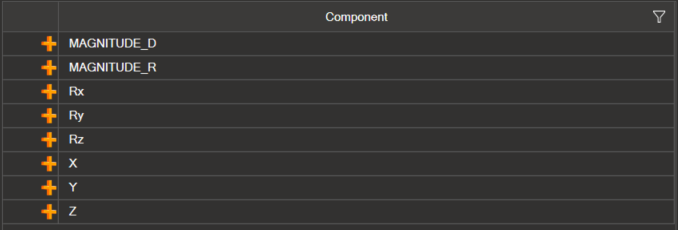
Choose the components to combine and enter the expressions as described in section 21.4.

The table at the bottom shows the expressions, which can be combined and evaluated.
The new component appears under the selected result type for all load cases, including derived ones.
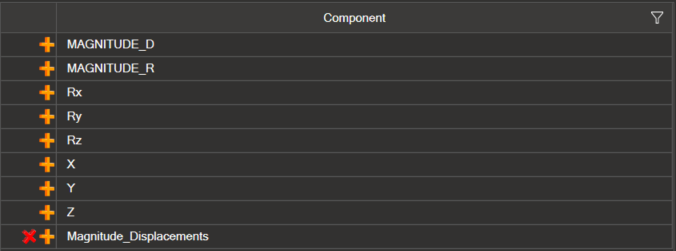
For example, a new component created under DISPLACEMENTS and named Magnitude_Displacements will appear as a selectable component whenever that result type is accessed, including for derived load cases.
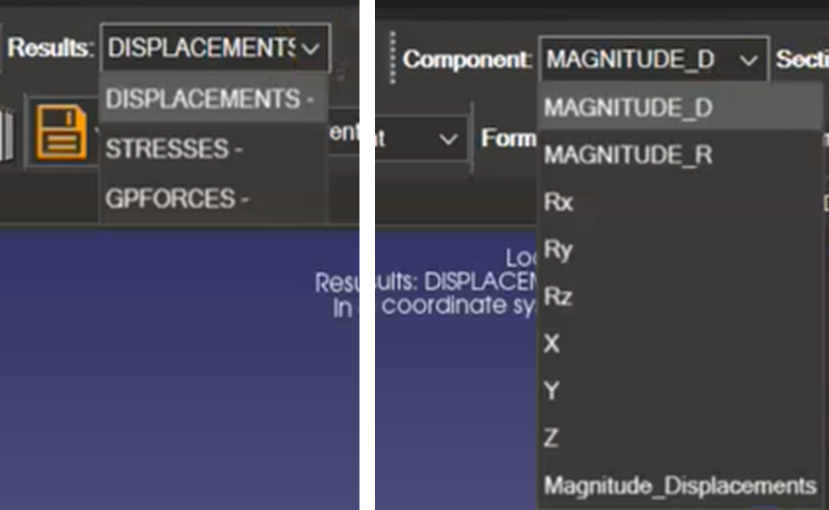
The newly derived component also appears in the table with the original components.
12.4. Edit and delete derived results#
Derived results, whether load cases or components, can be edited or deleted.

To edit a derived result, select it from the list, make the required changes, then click the Save (floppy disk) icon.
To delete a derived result, select it from the list and click the Delete (X) icon.