10. Output Window#
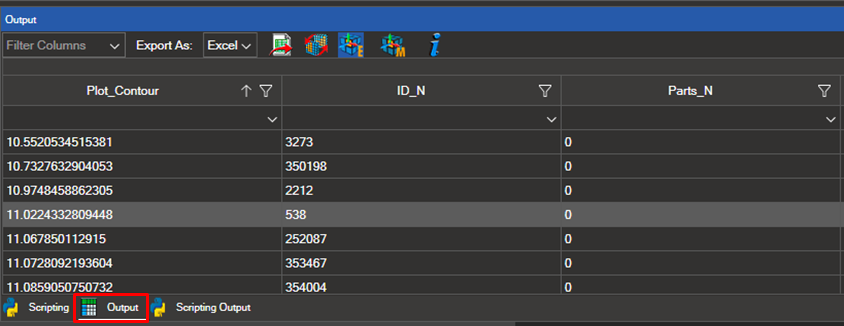
The Output tool displays result data for selected elements, nodes, and coordinate systems in a tabular format. The following sections describe its main features.
10.1. Plot Results and Make a Selection#
Important
A result plot must be active before making a selection. Load a model and apply a contour, vector, or tensor plot first.
Select the elements, nodes, or coordinate systems you wish to analyse. The Output table then displays the results for the active load case and the selected entities.
10.2. Customize Table Columns#
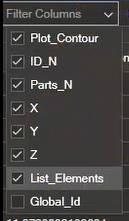
You can show or hide columns in the table. Click Filter Columns in the top left corner of the table to open the column visibility panel.

Check the columns to display and uncheck those to hide. Available columns include plot contour values, element or node IDs, properties, materials, element types, and coordinate systems.
10.3. Filter and Sort Values#
Clicking the filter icon on a column header opens a dropdown menu for filtering by value and sorting in ascending or descending order.
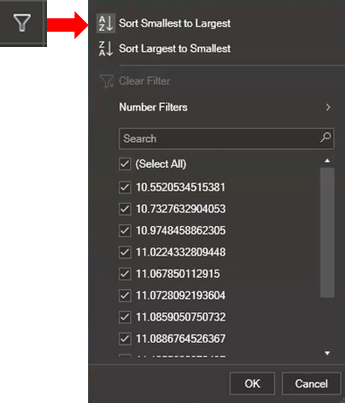
Select a filter operator from the dropdown:
Operator |
Description |
|---|---|
Equals |
Show rows where the value matches exactly |
Does not Equal |
Show rows where the value does not match |
Less than |
Show rows where the value is below the threshold |
Less than or Equal |
Show rows where the value is at or below the threshold |
Greater than |
Show rows where the value is above the threshold |
Greater than or Equal |
Show rows where the value is at or above the threshold |
Null |
Show rows with no value |
Not Null |
Show rows with any value |
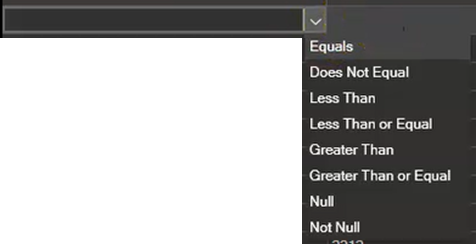
Enter the filter value in the input field beside the operator dropdown.
10.4. Export Data#
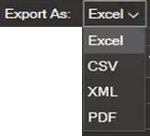
The table data can be exported in Excel, CSV, XML, or PDF format. Select the export format from the dropdown menu and click the corresponding icon.

Clicking this icon updates the selection in the 3D view to match the rows visible in the table.
Note
If any rows are hidden in the table, clicking this icon will also deselect the corresponding elements or nodes in the 3D view.
10.5. Coordinate Axes Visualization#
Use the following icons to display coordinate axes for selected elements directly in the 3D view.
Icon |
Name |
Description |
|---|---|---|

|
Element Coordinates |
Displays the coordinate axes of the selected elements. Click again to hide them. Zoom in on the selected elements to see their axes clearly. |

|
Material Coordinates |
Displays the coordinate axes of the materials assigned to the selected elements. Click again to hide them. |
10.6. Help#

Clicking the Information icon opens the NaxToView online help at this section.