24. XY Chart#
The XY Chart tool generates XY plots from simulation results for selected entities. It operates independently from the 3D model visualization — changing the plotted result or selection in the chart does not affect the contour displayed in the viewport, and vice versa.
24.1. Tabs#
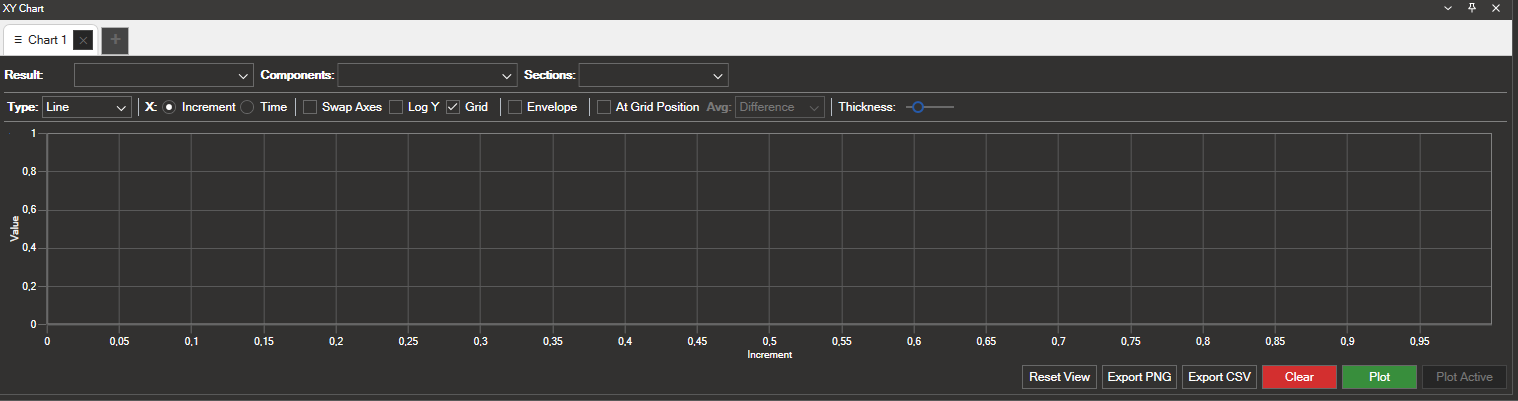
The XY Chart panel supports multiple independent tabs. Each tab maintains its own result selection, plot options, and chart data.
Click the + button next to the existing tabs to create a new chart tab.
Each tab can be closed individually using its × button.
Tabs are fully independent: plotting in one tab does not affect the others.
24.2. Result Selection#
The top row of the panel contains three dropdown selectors that define what data to plot:
Result: Select the result type to plot (e.g., Displacement, Stress, Force, etc.).
Components: Choose one or more result components to include in the chart (e.g., X, Y, Z, Magnitude).
Sections: When applicable, select the section point (e.g., for shell elements with multiple through-thickness layers).
24.3. Entity Matching#
The XY Chart resolves the relationship between the selected entities in the model and the nature of the chosen result:
Element-based result with elements selected: The result values are plotted directly for each selected element, with increments on the X axis and result values on the Y axis.
Node-based result with elements selected: The tool automatically resolves the nodes belonging to the selected elements and plots the result for those nodes.
Node-based result with nodes selected: The result values are plotted directly for the selected nodes.
Element-based result with nodes selected: The tool automatically resolves the elements associated with the selected nodes and plots the result for those elements.
This automatic resolution allows you to work with any combination of selection and result type without having to manually match entity types.
24.4. Plot Options#
The second row of the panel provides several options to configure the chart:
24.4.1. Chart Type#
The Type dropdown selects the chart rendering style (e.g., Line).
24.4.2. X Axis Mode#
Two radio buttons control what is represented on the X axis:
Increment: The X axis shows the increment index of each load case step.
Time: The X axis shows the time value associated with each increment.
24.4.3. Display Options#
Option |
Description |
|---|---|
Swap Axes |
Swaps the X and Y axes of the chart. |
Log Y |
Applies a logarithmic scale to the Y axis. |
Grid |
Shows or hides the background grid lines. Enabled by default. |
Envelope |
Plots the envelope of the selected results across all increments. |
At Grid Position |
Evaluates the result at the grid (node) position rather than at the element centroid. |
24.4.4. Averaging#
The Avg dropdown controls the averaging method used when plotting nodal results derived from element data (e.g., Difference). This option is only active when applicable.
24.4.5. Line Thickness#
The Thickness slider adjusts the line width of the plotted curves.
24.5. Actions#
The bottom-right area of the panel contains the following buttons:
Button |
Description |
|---|---|
Reset View |
Resets the chart zoom and pan to the default view. |
Export PNG |
Exports the current chart as a PNG image file. |
Export CSV |
Exports the plotted data to a CSV file. |
Clear |
Removes all plotted curves from the current tab. |
Plot |
Generates the chart using the current result selection, components, and selected entities. |
Plot Active |
Plots the result that is currently displayed as a contour in the 3D viewport for the selected entities, without needing to manually configure the Result and Components dropdowns. |
Tip
Plot Active is useful for quickly charting whatever result you are currently inspecting in the model. Select your entities, then click Plot Active — the tool will read the active contour result and plot it directly.