

23. Interactive PDF files#

The 3D PDF tool converts the model and results loaded in the 3D window into an interactive .pdf file. This file can be opened with Adobe Acrobat Reader (version 11 or later), without needing to install any plugins or additional software.
23.1. 3D PDF configuration#

Click the red gear icon to open the configuration window. The available options are:
Select which model trees to include in the .pdf file: Property, Material, or Parts.
The following options reduce the output file size:
Include Internal Elements — if this checkbox is selected, internal elements are included in the exported file, increasing its size. If this checkbox is cleared, those elements are omitted and the file size is reduced.
Convert Second-Order Elements to First-Order — converts second-order elements to first-order, reducing the output file size.
23.2. Generating the 3D PDF file#

Click the 3D PDF icon.
In the file browser that opens, select the destination folder and enter a filename. Click Save.
Only the content currently visible in the 3D window is exported. The resulting .pdf files are typically around 1 MB in size.
23.3. Handling 3D PDF tools#
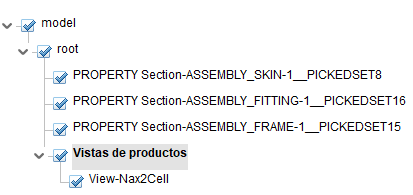
If the option to export the model tree was selected in the configuration, the 3D PDF will include it. To display it:
Right-click the model in the PDF.
Select Show Model Tree. The model tree appears in the PDF viewer.
The .pdf file also includes measurement and section cut tools.
