

11. Saving an Image#
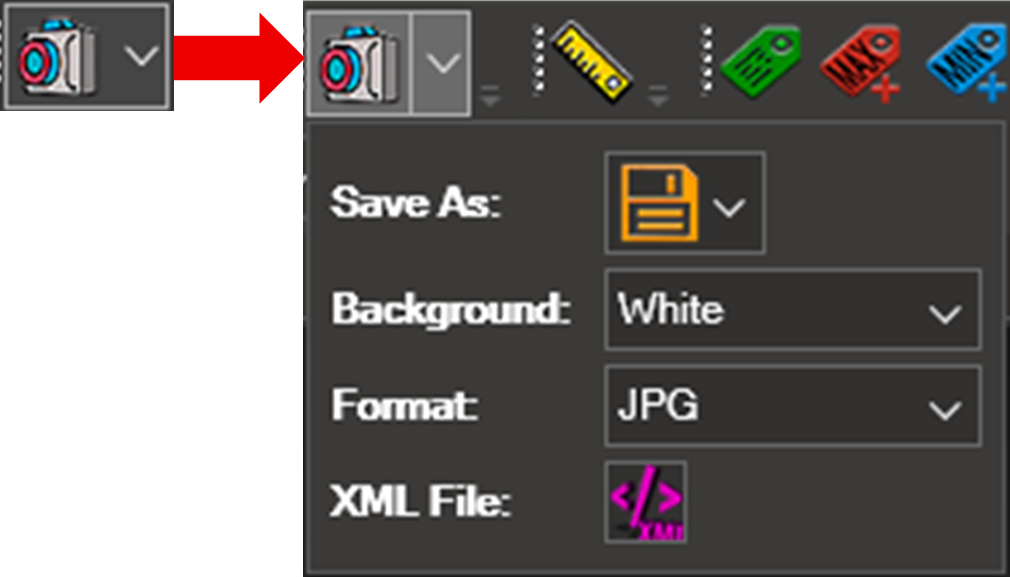
The Image Options toolbar is used to generate images of the model displayed in the 3D window. All image related settings are accessed from a single camera icon.
When you click the camera icon, a panel opens where you can configure how the image will be created (save options, background, format, XML file and view selection).
11.1. Image Creation Options#
From the Image Options panel you can choose how the image will be created:

Save As: Saves the image directly to a file.

Clipboard: Copies the image to the clipboard instead of saving it to disk.
When you click Save As and select the folder where the image will be stored, a dialog box appears informing you that there are X views currently displayed in the 3D window.
In this dialog you can choose whether you want to:
• Save images for all visible views, or
• Save only the currently selected view.
If you select “No”, only the active view is saved.
If you select “Yes”, an image is generated and saved for each of the views currently shown in the 3D window.
11.2. Background Options#
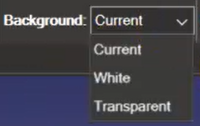
You can select the background color for the image:
Current — The image uses the same background currently shown in the 3D view.
White — The image background is set to white.
Transparent — Only available when the image format is PNG.
11.3. Image Format#
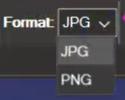
You can choose the file format of the image:
PNG — supports transparent backgrounds.
JPG — does not support transparent backgrounds.
11.4. Exporting the Image Configuration#

The XML File option allows you to create an xml file with the parameters that define the image.
This option is especially useful for tools such as NaxToDoc, where image configurations need to be reused or updated automatically.
11.5. Capture the Image#

Once all the image settings have been configured in the panel (Save As location, background, format, XML options and selected views), click the camera icon to generate the image. The resulting image will reflect the model exactly as it appears at that moment in the selected view or in all open views, depending on the chosen option.